This is a quick start guide for users logging in and using their LOGIQC QMS for the first time. It covers the basic functions of using your LOGIQC QMS and also contains links to some relevant 'How To articles'.
Log in
- Open your Internet browser (eg. Google Chrome) and go to https://(your LOGIQC URL)
(Note: using ‘www’ in the address will take you to the wrong page)

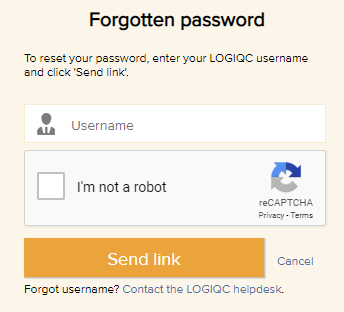
- Enter your username and password, and click log in. If you’ve forgotten your password, click on Forgot your password?, enter your username, tick the 'I'm not a robot' box and then click on 'Send link' and a reset password will be sent to your email address. (Note: if you can't remember your username, select 'Contact the LOGIQC help desk'.)
Related articles:
How to request a password reset
Updating your password
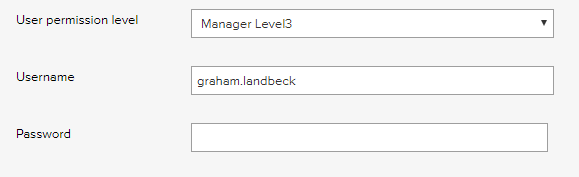
- After logging in, click on the My profile link on the top right hand side of the screen.

- Go to the Password field, type your new password and click save.
Related articles:
Get help
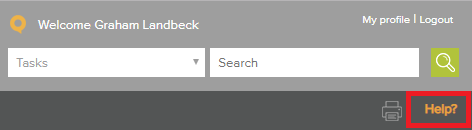
- Click Help (top-right of screen) to access the Help Centre and browse the help articles.
OR
- Click Support (bottom of screen) to submit a support request ticket to the LOGIQC Help Desk staff

Related articles:
How to log a Help Desk support ticket
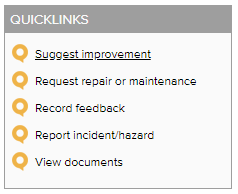
Report an event (eg incident, complaint, feedback, improvement)
- Click on the relevant Quicklink option.
- Complete the form shown and click save. A task to respond to the issue will be sent to the person you selected as approval officer.
Related articles
Get a document
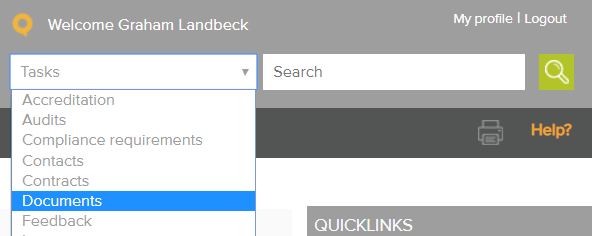
- Click on Documents.
- To search for a document, type the name of the document in the search field (part word is OK) and click enter.
- Click on the file icon to open the document
Related articles:
Complete a Task
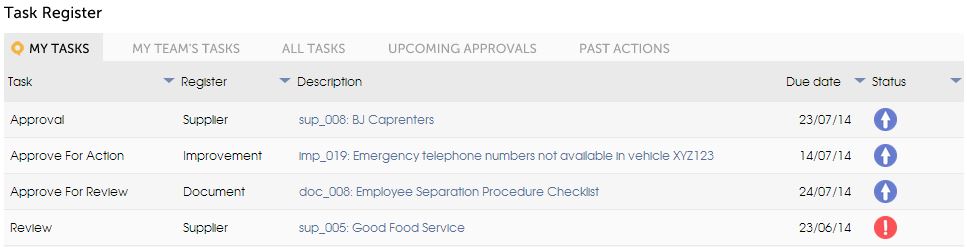
If you have a task you will receive an email and a task will be listed in My tasks when you log in.
- Click on the link in the Description column to open your tasks and review your options and instructions.
Related articles:
Attach a record to the task (Optional)
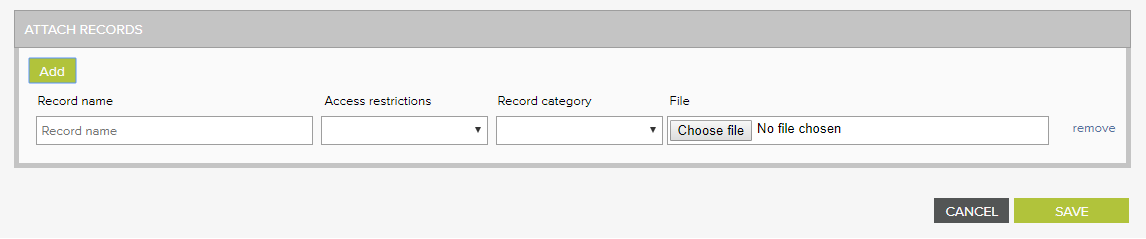
- Click add to reveal the upload fields.
- Type a description of the record name and, if the record needs to be confidential, select an access restriction level.
- Select the most relevant record category for the record
- Click choose file and locate the record. When you task is saved, the record will be uploaded into LOGIQC.
Download a document version of the Quick Start guide below:
Comments
Article is closed for comments.