Once a supplier has been added into Business Contacts the next step is to update their business details into the Supplier Register, and assign them to a relevant work area for management and review.
See - How to Add/Remove a general business contact
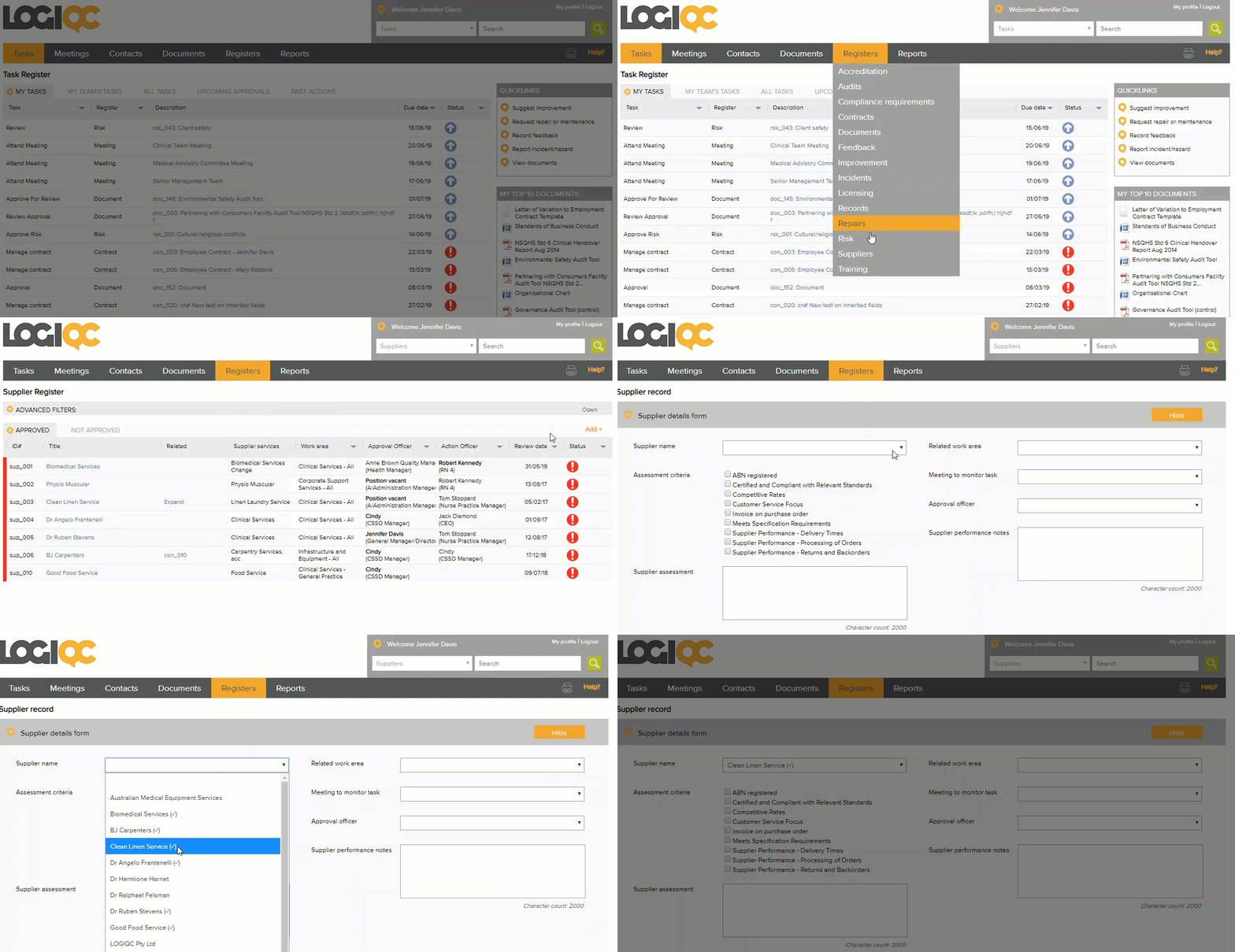
Adding a supplier
- Click on registers and select Suppliers.
- Click add.
- Complete the required fields. (see below for more details)
- Click Save as Draft or Save.
Field descriptions
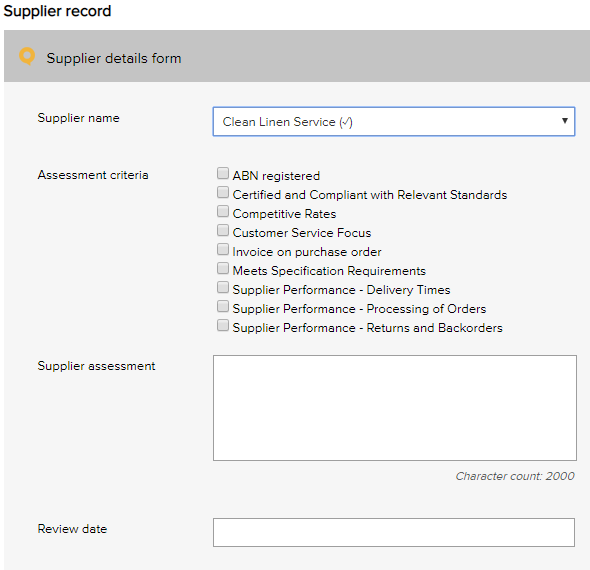
Supplier name
Select the supplier name to add to the supplier register. Note: This drop-down menu is pre-populated by the contacts entered in the contact register.
Assessment criteria
Select the box where a supplier meets the criterion. These criteria are set in the system setup module by the system administrator.
Supplier assessment
Provide a summary of the assessment done on the supplier.
Review date
Enter a date for when the supplier should be reviewed and reassessed.
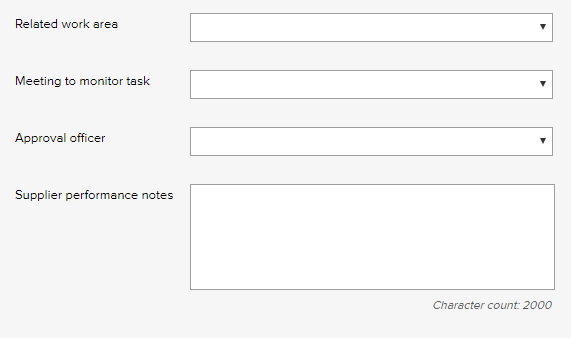
Related work area
Select the work area of your organisation that the supplier most relates to. The options can be controlled by your System Administrator.
Meeting to monitor task
Select the staff team responsible for monitoring the review of the supplier.
Approval officer
Select the staff member to approve the supplier. Only people with the relevant system permissions levels can approve suppliers.
Supplier performance notes
Enter any anecdotal comments over the course of time about the supplier. Where the supplier has been in breach a formal non-conformance report should be raised by creating a related improvement. This field is optional.
Add records
Related records can be added to the supplier record which can be restricted to viewing permissions.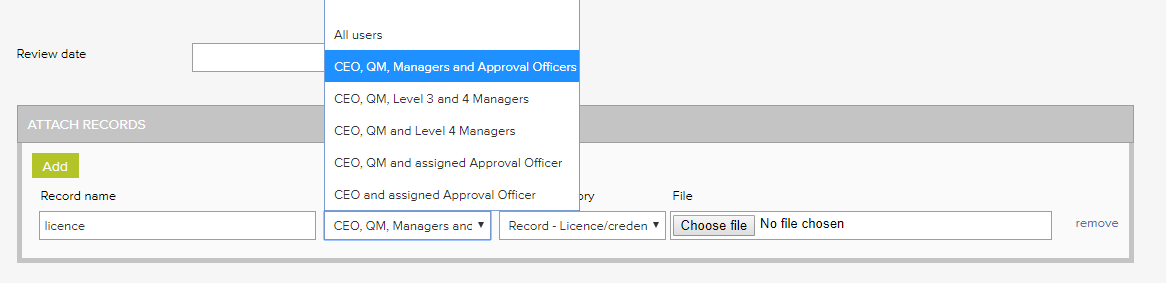
Comments
Article is closed for comments.