If you have been assigned the role of action officer for a repair item, you will receive a task in LOGIQC asking you to complete the requested instructions from the assigned approval officer.
The task type will be 'Action'.

To open, click on the title of the repair item.
To action the repair item
- When you open the repair item, the form will open at the task options screen
- Read the instructions contained in the 'Instructions' text box. These have been added by the Approval officer for you to complete
- Select your action from the task options and complete the required fields
- Select 'Save'
Task options explained
Action complete - describe action taken
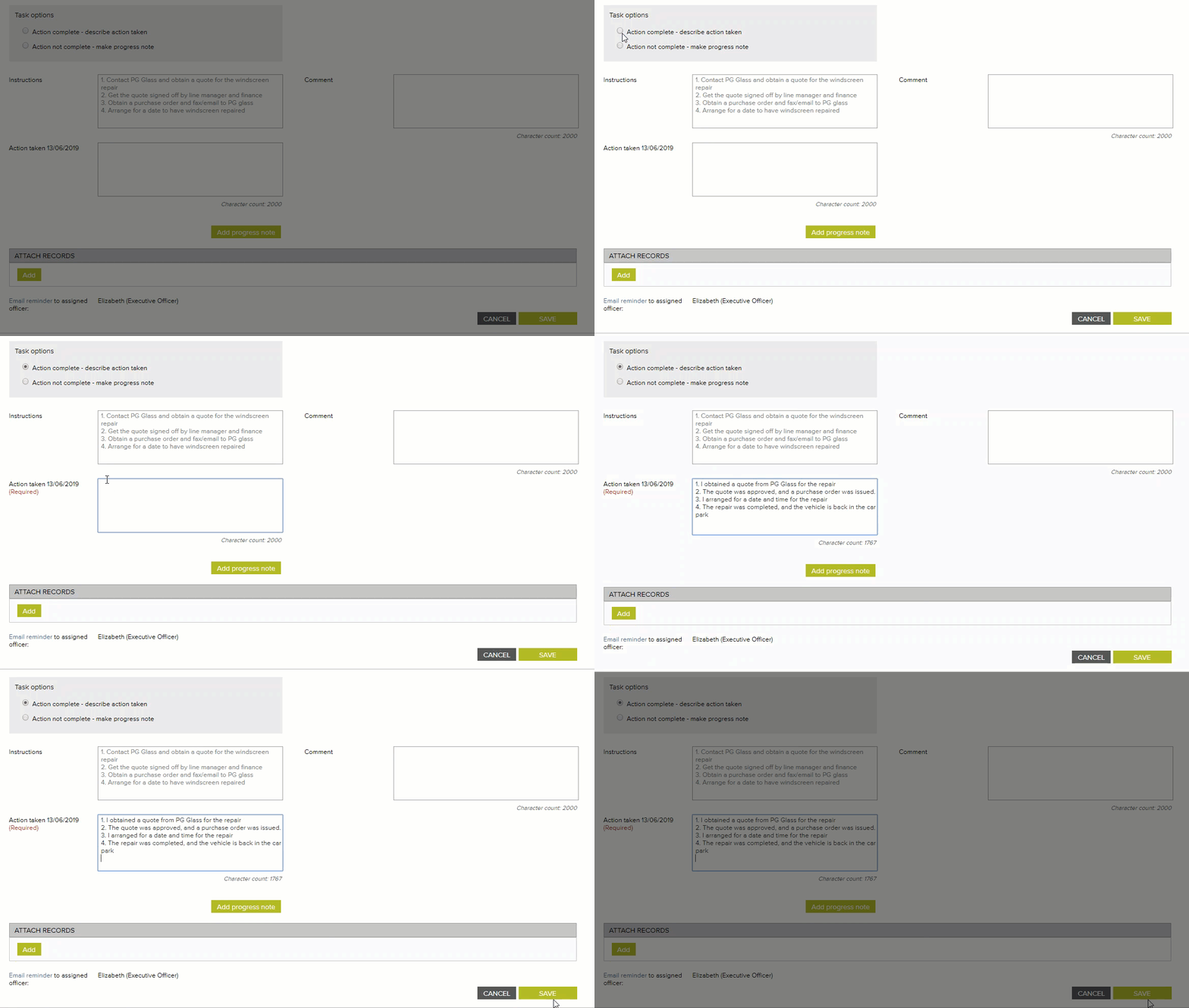
Select if you have completed the action and describe the actions you have taken.
Required fields:
- Action taken including date
Attach any records as evidence of actions taken

The task will be sent to the approval officer for review and approval.
Action not complete - make progress note
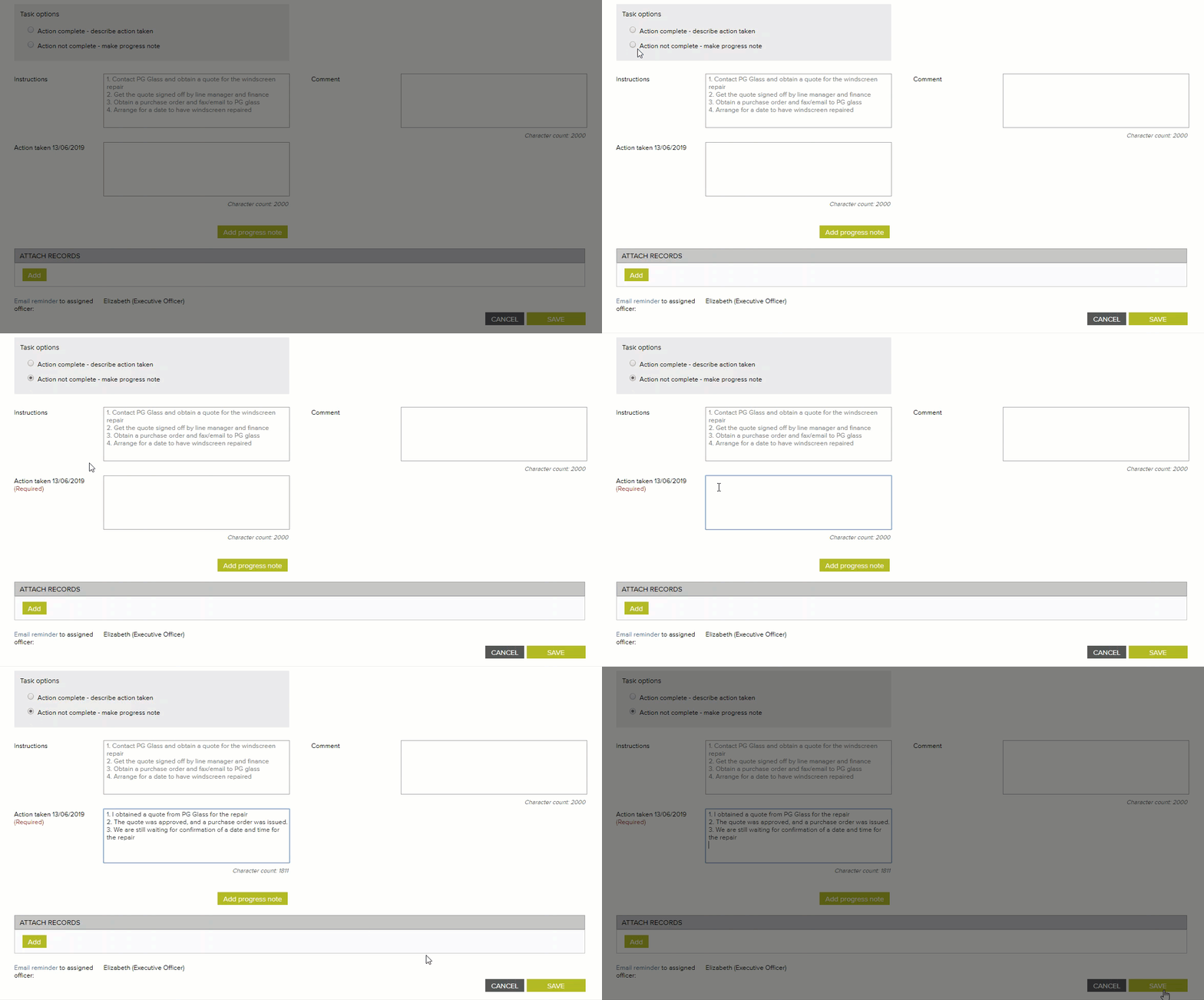
Select if you have not completed the action and want to make a progress note.
Required fields:
- Action taken including date
When you make a progress note the task will remain in your task box.
You must select 'Action complete' and describe your final action taken to close off the task.
Comments
Article is closed for comments.